Choose an image format by what the pixels contain. Photographs tolerate controlled lossy compression, interface screenshots expose ringing around text, and transparent artwork needs an alpha-capable format.
To make that decision concrete, we exported the same 1536×1024 market photo and the same 1440×900 browser UI fixture to JPG, PNG, and WebP. The controlled comparison used ImageMagick 7 with metadata stripped, quality 82 for JPG and WebP, and lossless PNG. It is a reproducible format benchmark, not a claim that every encoder uses identical quality scales.
Measured files
| Content | JPG, quality 82 | PNG, lossless | WebP, quality 82 |
|---|---|---|---|
| Detailed photo, 1536×1024 | 381,860 bytes | 2,912,128 bytes | 317,676 bytes |
| UI screenshot, 1440×900 | 53,876 bytes | 56,680 bytes | 23,114 bytes |
In the comparison below, the top row is the photo and the bottom row is the UI screenshot. Each row runs left to right in the same order as the table: JPG, PNG, then WebP.
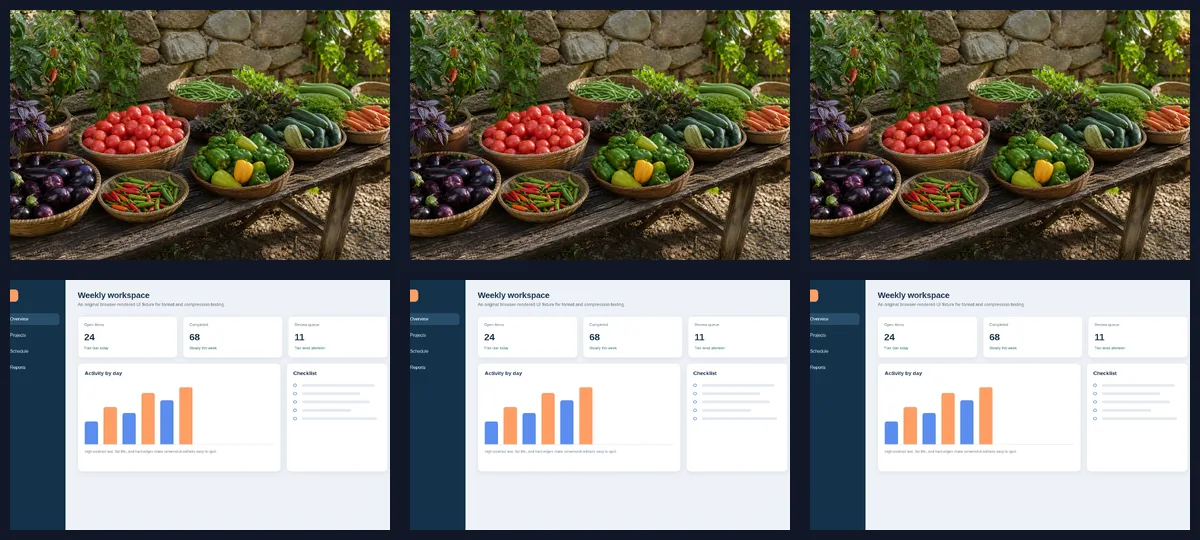
The table is not a permanent league table. Different quality values, encoders, images, and metadata will change the result. It does show why “PNG is always huge” and “JPG is always best for photos” are shortcuts rather than complete rules.
JPG: practical for opaque photographs
JPG is widely supported and often appropriate for photos without transparency. It uses lossy compression, so repeated saves or aggressive quality settings can soften texture and create blocks or halos.
PhoEdit’s Convert to JPG tool was also tested on the PNG master of the market photo. With its No compression option, the browser output was a 2,122,118-byte 1536×1024 JPEG. This is larger than the controlled quality-82 JPEG because “No compression” favors output quality rather than minimum size.
JPG has no alpha channel. When we converted the original transparent graphic through PhoEdit, the downloaded file was a 1200×900 RGB JPEG with no transparency. The transparent area was flattened.
Use JPG when:
- the image is an opaque photograph;
- broad compatibility matters;
- a little controlled loss is acceptable;
- the final file will not be repeatedly edited and saved.
Avoid JPG for logos, crisp UI text, diagrams with flat colors, or anything that needs transparency.
PNG: lossless pixels and alpha
PNG preserves hard edges and supports transparency. That makes it a good default for interface screenshots, diagrams, and transparent graphics. It can be inefficient for detailed photographs because it stores the pixel information losslessly.
PhoEdit’s Convert to PNG test converted the 834,049-byte JPEG photo to a 3,963,767-byte PNG. Converting a JPEG to PNG did not restore details already lost in the JPEG; it only stored the current pixels in a lossless container.
The alpha test behaved as expected. The 110,416-byte RGBA PNG remained RGBA after a PhoEdit PNG conversion, producing a 130,200-byte output. That proves alpha retention for this fixture and build, not for every input format.

Use PNG when:
- transparency is required;
- text and hard geometric edges must remain exact;
- you need a lossless intermediate;
- file size is secondary to pixel fidelity.
Do not convert a compressed JPG to PNG expecting better detail. The output usually becomes larger without recovering anything.
WebP: often efficient, but test the receiving system
WebP supports both lossy and lossless modes, including transparency. In our controlled exports it was the smallest format for both fixtures. That is useful evidence, but the receiving CMS, email system, document editor, or older workflow must accept it.
PhoEdit does not currently expose a dedicated “Convert to WebP” route, so the WebP values in the table came from the controlled local export. PhoEdit’s Compress Image tool can preserve a WebP input in the tested implementation, but that is not the same as a general-purpose WebP converter.
Use WebP when:
- the delivery platform explicitly accepts it;
- web file size matters;
- you have tested decoding in the target browsers or application;
- your workflow can retain an original PNG or JPEG master.
Quick choices
| Task | Starting recommendation | Check before publishing |
|---|---|---|
| Product or travel photo | JPG or lossy WebP | Texture at 100%, required dimensions |
| UI screenshot with small text | PNG or lossless WebP | Text halos, gradients, platform support |
| Transparent graphic | PNG or alpha WebP | Alpha channel and edge fringe |
| Image for an unknown upload form | JPG for opaque photos; PNG for transparency | Accepted extensions and byte limit |
| Editable master | PNG or original source | Do not overwrite the only original |
Verification checklist
After conversion, use a file inspector to verify the extension and actual format. Then check:
- pixel dimensions;
- alpha channel, if required;
- hard edges and small text at 100%;
- color and gradients;
- exact byte size;
- whether the destination accepts and displays the file.
Format selection comes before aggressive compression. If a file is still too large after choosing the right format, continue with Compress Image or reduce dimensions with Resize Image.