A PDF can open correctly and still print badly. Image order, page orientation, margins, crop behavior, and source resolution must be checked before the file reaches a printer.
We tested PhoEdit’s Image to PDF tool with three original files in this order:
- a 1536×1024 landscape photograph;
- a 1440×900 UI screenshot;
- a 1122×1402 portrait product photograph.
The selected settings were A4, Landscape, Small margin, and Medium image compression.
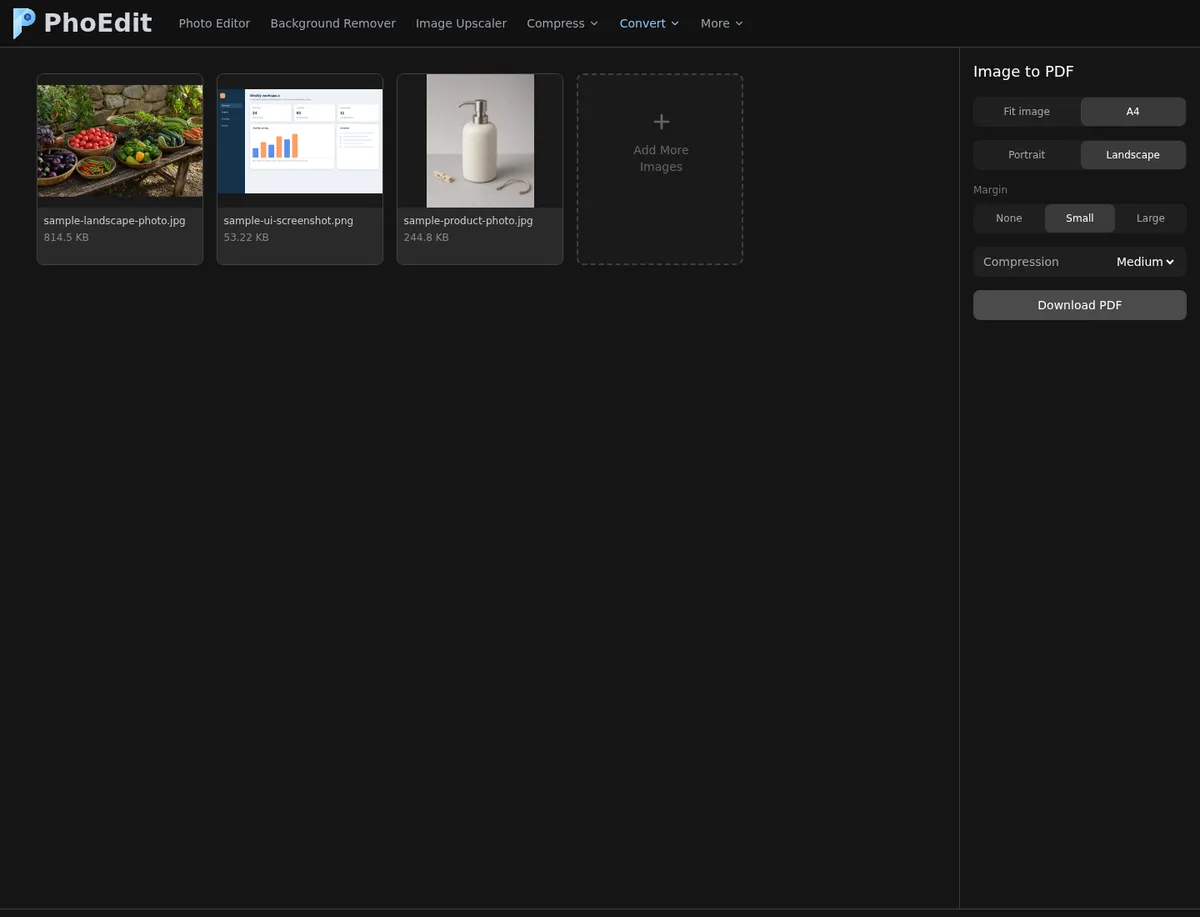
Test result
The downloaded phoedit-image-to-pdf.pdf was 333,436 bytes. Its header was %PDF-1.3. Both the system file inspection and pypdf reported three pages. A rendered check of page one showed the landscape photograph inside the expected A4 landscape page with visible margins.
| Check | Result |
|---|---|
| Input count | 3 |
| Output page count | 3 |
| Page order | Matched upload order |
| Page preset | A4 landscape |
| Margin | Small |
| PDF opens | Yes |
| File structure | PDF 1.3 |
| Output size | 333,436 bytes |
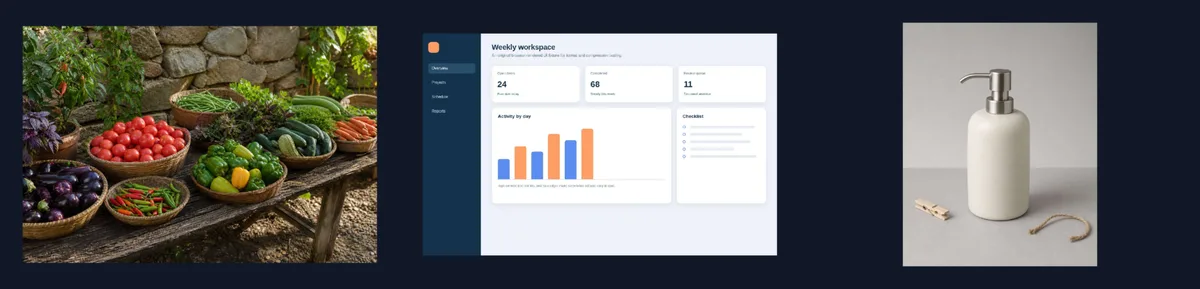
Step-by-step workflow
- Prepare the images before opening the converter. Rotate them correctly and crop away anything you do not want printed.
- Open Image to PDF.
- Upload the files in the intended reading order.
- Use Move earlier and Move later if a page is misplaced.
- Choose Fit image when each source should define its own page, or select A4 for a consistent document.
- When A4 is selected, choose Portrait or Landscape.
- Choose a margin. A margin protects content from printer non-printable areas, but makes the placed image smaller.
- Select image compression. Use a gentler option for small text and fine line work.
- Download the PDF.
- Open the actual file and review every page before printing.
Fit image or A4?
Fit image is useful for a digital PDF where mixed page sizes are acceptable. It avoids placing a landscape image into a fixed portrait page, but the result may be awkward for office printing.
A4 creates consistent pages. It can introduce empty space around sources whose aspect ratio differs from the page. That empty space is usually safer than cropping unseen content.
The tested build disables orientation controls while Fit image is selected, because orientation only applies to the fixed A4 page.
Margin choices
- None uses the largest available area, but edge content may be clipped by a physical printer.
- Small is a practical default for ordinary pages.
- Large adds more safety but reduces the image’s printed size.
Margins are not bleed settings. If a print shop requires full bleed, crop marks, a color profile, or a specific PDF standard, use a dedicated layout application and follow the shop’s specification.
How to inspect the downloaded PDF
Check more than “it opens”:
- Confirm the page count.
- Confirm the first, middle, and final page order.
- Look for unexpected rotation.
- Zoom to 100% or 200% and inspect small text and diagonals.
- Make sure no important subject touches the page edge.
- Open the print preview and confirm paper size, orientation, and scaling.
- Print one test page before committing to a large batch.
Resolution limits
A source can look sharp on screen and still be soft on paper. For a rough check, divide pixel dimensions by the intended print resolution. A 1500-pixel-wide image is five inches wide at 300 pixels per inch. Enlarging it to ten inches gives only 150 pixels per inch.
PhoEdit can package images into a PDF, but it cannot restore detail that was not in the source. Avoid upscaling small screenshots for print and do not assume the PDF wrapper improves resolution.
Failure handling
If the PDF is too large, reduce image dimensions or select a stronger image-compression option, then re-check text and edges. If a page is cropped, go back to the source image, add appropriate whitespace, or use Fit image. If the order is wrong, correct it in the tool rather than relying on a printer dialog.
For PDFs made from existing documents rather than images, see Text PDFs vs Scanned PDFs. Those two types react very differently to compression.