Two PDFs can show the same words but store them in completely different ways. A text PDF contains fonts, character instructions, and vector shapes. A scanned PDF usually contains one or more page-sized images. That difference determines what a compressor can safely remove.
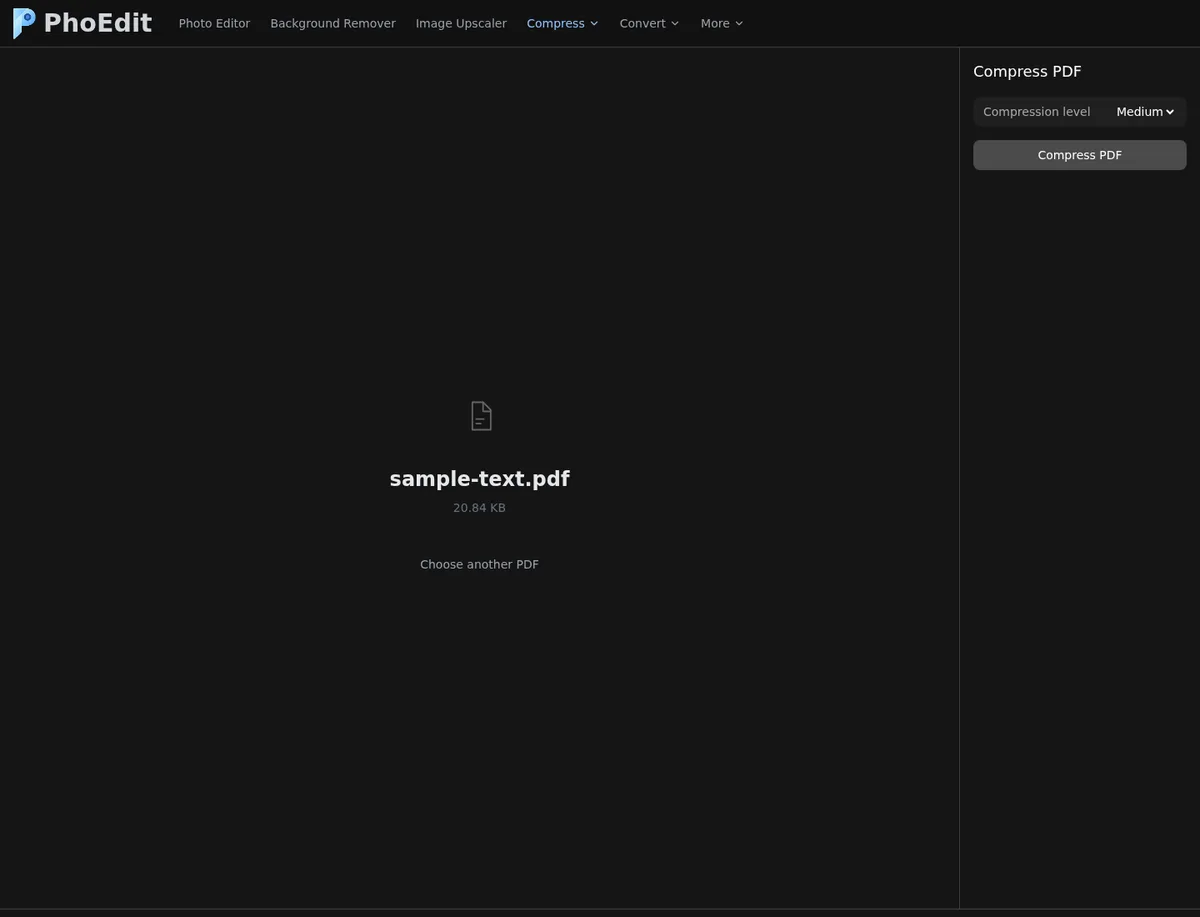
We prepared two original fixtures for PhoEdit’s Compress PDF tool:
| Fixture | Construction | Input bytes | Pages | Extractable characters |
|---|---|---|---|---|
| Text PDF | HTML printed by Chromium | 21,340 | 1 | 559 |
| Scanned PDF | Browser page captured as pixels, then wrapped in PDF | 115,473 | 1 | 0 |
The text PDF includes the searchable phrase “copper lantern beside the blue notebook.” The scanned page visibly includes another phrase, but pypdf extracted zero characters because no OCR text layer was added.
Important test limitation
Both files passed the local upload validation. The low, medium, and high compression runs did not complete in this environment. The browser could not load PhoEdit’s Ghostscript module and WASM from models.phoedit.com because of CORS, and the production site was blocked from the test network by Cloudflare.
No output sizes, reduction percentages, or “successful” compression results are therefore claimed here. The truthful result table is:
| Source | Low | Medium | High |
|---|---|---|---|
| Text PDF | Not measured: engine blocked | Not measured: engine blocked | Not measured: engine blocked |
| Scanned PDF | Not measured: engine blocked | Not measured: engine blocked | Not measured: engine blocked |
This field note is intentionally not an output benchmark. Its useful result is the source-type diagnostic, the verified upload behavior, and the exact model-loading failure. Low/medium/high output values should only be added after a separate allowed-origin run produces files that can be opened and inspected.
How to tell which PDF you have
Open the document in a PDF viewer and try three checks:
- Drag across one sentence. If individual words highlight, a text layer exists.
- Search for a phrase you can see. A successful match suggests searchable text or OCR.
- Zoom in. Vector text stays crisp far beyond the point where a scanned letter breaks into pixels.
A scan can also contain an invisible OCR layer. In that case, text selection may work even though the visible page is still a large image.
How the compression levels should be tested
- Keep an untouched copy of the original PDF.
- Open Compress PDF.
- Upload one document.
- Select Low and run compression.
- Save the download with a clear suffix such as
-low.pdf. - Repeat from the original for Medium and High. Do not compress an already compressed output.
- Record exact bytes, page count, whether the file opens, and whether text remains selectable.
- Render or inspect the same small-text area in all three outputs.
Test text and scan fixtures separately. Combining them into one result hides which pages gained or lost quality.
What to expect from a text PDF
Text-heavy PDFs may already be compact. Font subsetting, compressed content streams, and vector graphics leave less obvious waste for an image-downsampling preset to remove. A compressor may return the original when it cannot create a smaller valid file.
Check:
- all pages are present;
- searchable phrases still work;
- copied text has the correct reading order;
- thin table rules remain visible;
- fonts have not been substituted;
- links and form fields still behave as expected.
The tested source was only 21,340 bytes, so a dramatic reduction would be suspicious rather than automatically desirable.
What to expect from a scanned PDF
An image-only scan is more likely to respond to lower image resolution and stronger JPEG compression. The trade-off is visible: small type, punctuation, stamps, and faint pencil marks can soften or disappear.
Check:
- the smallest text at 100% and 200%;
- high-contrast edges around letters;
- light gray paper details;
- diagrams, signatures, and stamps;
- OCR searchability, if the original had an OCR layer.
Compression does not create OCR. If the input has zero selectable characters, a smaller output normally still has zero unless a separate OCR step is performed.
Choosing Low, Medium, or High
Start with Low when legibility and print quality matter. Move to Medium if the file remains above the receiver’s limit. Use High only after comparing the downloaded pages, because its lower image-resolution target is most likely to affect scans.
The preset names describe compression strength, not guaranteed output size. A text PDF may barely change, while a scan may change substantially. An already optimized PDF may not get smaller at all.
Verification record to keep
For each output, record:
- input and output bytes;
- page count;
- PDF opens without a repair warning;
- extractable character count;
- test phrase found or not found;
- small-text verdict;
- any missing pages, altered colors, or broken links.
If compression fails, try a non-encrypted PDF and a stable network, then check whether the model/WASM host loads in the browser console. Password-protected documents require decryption by an authorized owner before this workflow. A future allowed-origin validation can extend this field note with measured outputs without changing the source-identification or verification method.